08 — 几何体
介绍
到目前为止,我们只使用了 BoxGeometry 类来创建立方体。在这节课中,我们会认识各种其他几何体,但首先,我们需要理解几何体到底是什么。
什么是几何体?
在 Three.js 中,几何体由顶点(3D 空间中的坐标点)和面(把这些顶点连接起来形成表面的三角形)组成。
我们用几何体来创建 mesh,但你也可以把几何体用于生成粒子。每个顶点(vertices 的单数形式)会对应一个粒子,不过这是以后课程的内容。
我们可以在顶点里存储比位置更多的数据。一个很好的例子是 UV 坐标或法线(normals)。你会看到,我们以后会学到更多这些内容。
各种内置几何体
Three.js 有许多内置几何体。虽然你不需要精确地知道如何实例化每一个,但知道它们的存在是件好事。
我们要看到的所有内置几何体都继承自 BufferGeometry 类。这个类有很多内置方法,比如 translate(...)、rotateX(...)、normalize() 等等,但本课中我们不会用到它们。
大多数几何体的文档页面都带有示例。
- BoxGeometry 用来创建一个盒子。
- PlaneGeometry 用来创建一个矩形平面。
- CircleGeometry 用来创建一个圆盘或圆盘的一部分(比如饼图)。
- ConeGeometry 用来创建一个圆锥或圆锥的一部分。你可以打开或关闭圆锥的底面。
- CylinderGeometry 用来创建一个圆柱。你可以打开或关闭圆柱的两端,还可以改变每一端的半径。
- RingGeometry 用来创建一个扁平圆环或扁平圆环的一部分。
- TorusGeometry 用来创建一个有厚度的圆环(像甜甜圈那样)或圆环的一部分。
- TorusKnotGeometry 用来创建某种打结的几何体。
- DodecahedronGeometry 用来创建一个 12 面的球。你可以添加细节让它更圆润。
- OctahedronGeometry 用来创建一个 8 面的球。你可以添加细节让它更圆润。
- TetrahedronGeometry 用来创建一个 4 面的球(如果你不增加细节,它就不大像个球)。你可以添加细节让它更圆润。
- IcosahedronGeometry 用来创建一个由大小大致相同的三角形组成的球。
- SphereGeometry 用来创建最流行的球形,其面看起来像四边形(quads 其实就是两个三角形的组合)。
- ShapeGeometry 用来基于一条路径创建形状。
- TubeGeometry 用来创建沿路径延伸的管道。
- ExtrudeGeometry 用来基于一条路径创建挤出体。你可以添加并控制倒角(bevel)。
- LatheGeometry 用来创建一个花瓶或花瓶的一部分(更像一种旋成体)。
- TextGeometry 用来创建 3D 文字。你得提供 typeface json 格式的字体。
如果你需要一个 Three.js 不支持的特殊几何体,你可以用 JavaScript 创建自己的几何体,或者在 3D 软件里制作,导出后导入项目。我们以后会学到更多这些内容。
Box 示例
我们已经做过一个立方体,但我们没有多聊它的参数。大多数几何体都有参数,使用前你总该先看看文档。
BoxGeometry 有 6 个参数:
width:在x轴上的尺寸height:在y轴上的尺寸depth:在z轴上的尺寸widthSegments:在x轴上有多少细分heightSegments:在y轴上有多少细分depthSegments:在z轴上有多少细分
细分对应的是每个面应该由多少个三角形组成。默认是 1,意思是每个面只有 2 个三角形。如果你把细分设为 2,每个面就会变成 8 个三角形:
const geometry = new THREE.BoxGeometry(1, 1, 1, 2, 2, 2)问题是我们看不到这些三角形。
一个好办法是给我们的材质添加 wireframe: true。线框会显示分隔每个三角形的线条:
const material = new THREE.MeshBasicMaterial({ color: 0xff0000, wireframe: true })
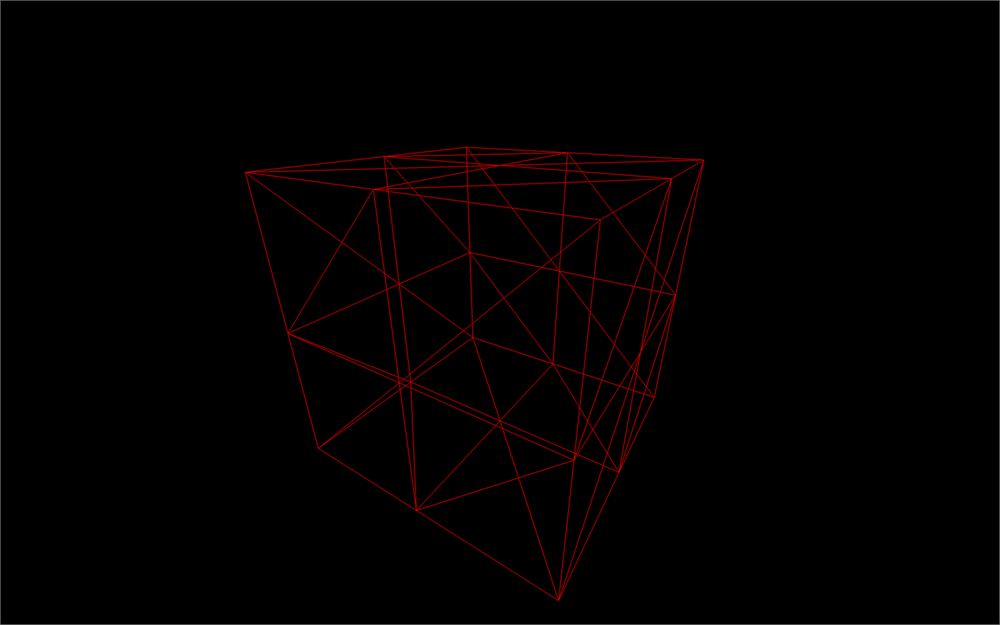
如你所见,每个面有 8 个三角形。
虽然这对一个平面立方体没什么看点,但用于 SphereGeometry 时就更有意思了:
const geometry = new THREE.SphereGeometry(1, 32, 32)
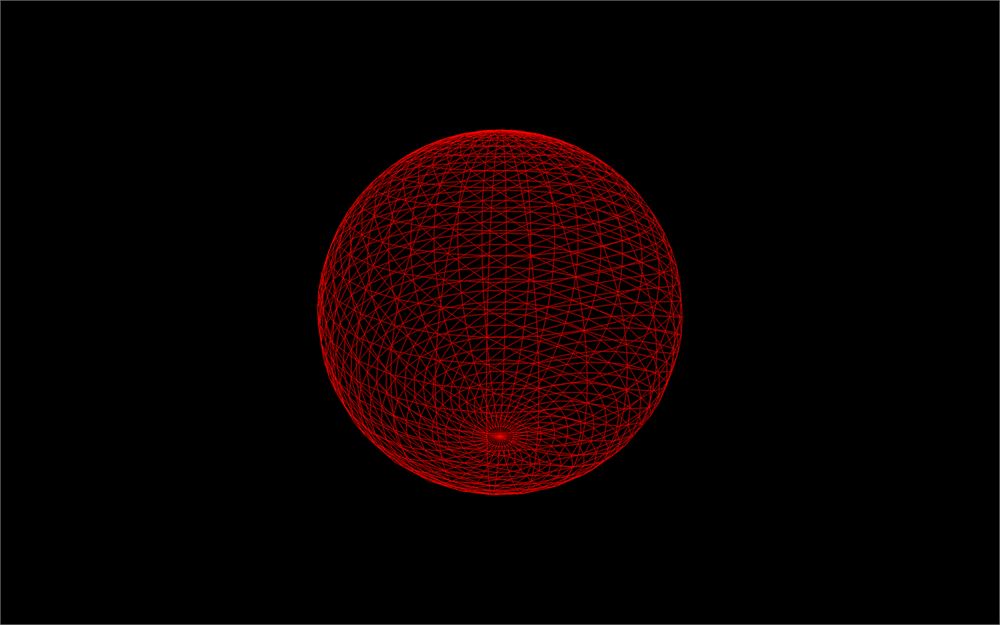
我们加的细分越多,就越难以分辨各个面。但记住,顶点和面太多会影响性能。
创建你自己的 BufferGeometry
有时候,我们需要创建自己的几何体。如果几何体非常复杂或形状很精确,最好在 3D 软件中创建它(这我们会留到以后的课程讲),但如果几何体不算太复杂,我们也可以自己用 BufferGeometry 来构建。
要创建你自己的 BufferGeometry,先实例化一个空的 BufferGeometry。我们要创建一个简单的三角形:
// Create an empty BufferGeometry
const geometry = new THREE.BufferGeometry()
要向 BufferGeometry 添加顶点,你必须先有一个 Float32Array。
Float32Array 是原生 JavaScript 的 typed array(类型化数组)。里面只能存放浮点数,而且数组长度是固定的。
要创建 Float32Array,你可以指定它的长度,以后再填充:
const positionsArray = new Float32Array(9)

// First vertice
positionsArray[0] = 0
positionsArray[1] = 0
positionsArray[2] = 0

// Second vertice
positionsArray[3] = 0
positionsArray[4] = 1
positionsArray[5] = 0

// Third vertice
positionsArray[6] = 1
positionsArray[7] = 0
positionsArray[8] = 0
或者你可以直接传一个数组:
const positionsArray = new Float32Array([
    0, 0, 0, // First vertex
    0, 1, 0, // Second vertex
    1, 0, 0  // Third vertex
])
如你所见,顶点的坐标是按顺序线性指定的。这是一个一维数组,你先指定第一个顶点的 x、y、z,然后第二个顶点的 x、y、z,依此类推。
在把这个数组发送给 BufferGeometry 之前,你必须先把它转换成 BufferAttribute。
第一个参数对应你的类型化数组,第二个参数对应构成一个顶点属性需要多少个值。正如我们前面看到的,要读取这个数组,我们必须每 3 个一组,因为一个顶点位置由 3 个值(x、y、z)组成:
const positionsAttribute = new THREE.BufferAttribute(positionsArray, 3)然后我们可以用 setAttribute(...) 方法把这个属性添加到我们的 BufferGeometry。第一个参数是属性的名称,第二个参数是它的值:
geometry.setAttribute('position', positionsAttribute)我们选择 'position' 作为名称,因为 Three.js 内部的 shader 会查找这个值来定位顶点。我们在 shader 课程里会讲到更多这些内容。
面会按照顶点的顺序自动创建。
全部合在一起:
// Create an empty BufferGeometry
const geometry = new THREE.BufferGeometry()

// Create a Float32Array containing the vertices position (3 by 3)
const positionsArray = new Float32Array([
    0, 0, 0, // First vertex
    0, 1, 0, // Second vertex
    1, 0, 0  // Third vertex
])

// Create the attribute and name it 'position'
const positionsAttribute = new THREE.BufferAttribute(positionsArray, 3)
geometry.setAttribute('position', positionsAttribute)
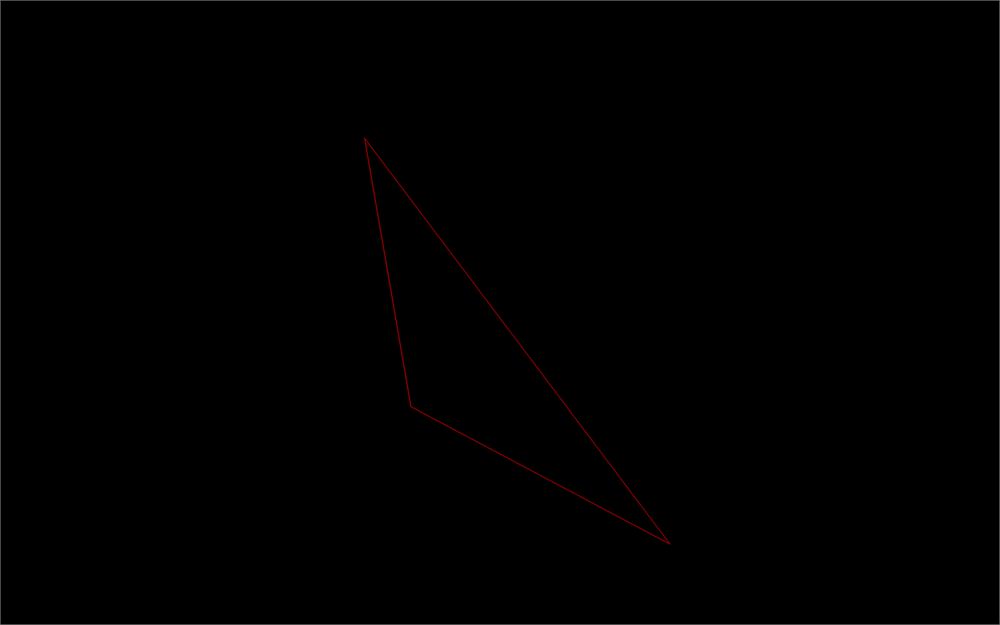
我们还可以创建一堆随机三角形:
// Create an empty BufferGeometry
const geometry = new THREE.BufferGeometry()

// Create 50 triangles (450 values)
const count = 50
const positionsArray = new Float32Array(count * 3 * 3)
for(let i = 0; i < count * 3 * 3; i++)
{
    positionsArray[i] = (Math.random() - 0.5) * 4
}

// Create the attribute and name it 'position'
const positionsAttribute = new THREE.BufferAttribute(positionsArray, 3)
geometry.setAttribute('position', positionsAttribute)
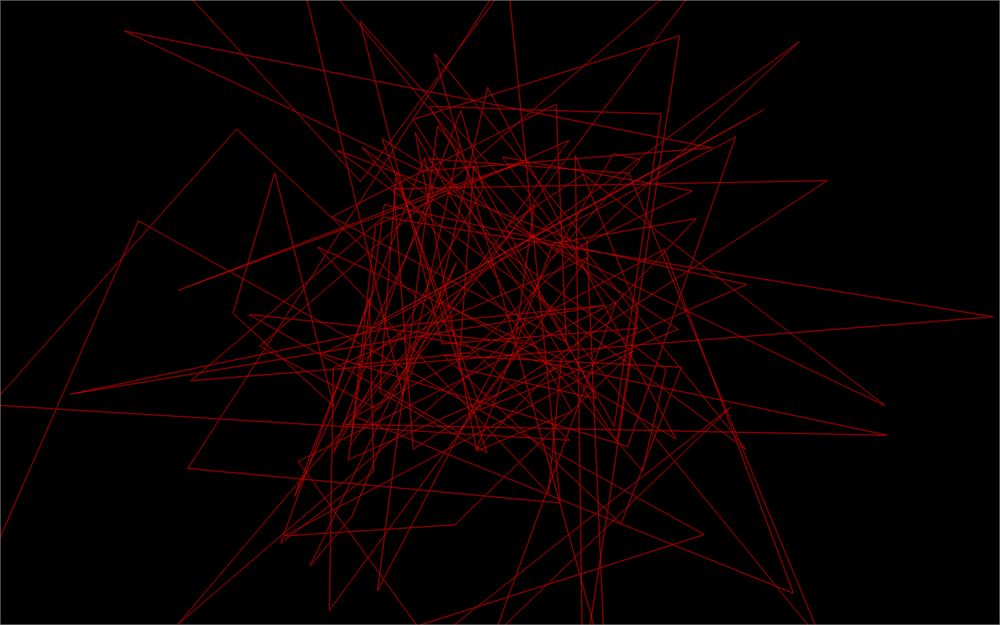
唯一的难点可能是 count * 3 * 3 这部分,但解释起来很简单:我们需要 50 个三角形。每个三角形由 3 个顶点组成,每个顶点由 3 个值(x、y、z)组成。
索引
BufferGeometry 有一个有趣的地方,就是你可以用 index 属性复用顶点。以立方体为例,多个面可以共用某些顶点,比如角落的那些顶点。再仔细看,每个顶点都可以被多个相邻三角形使用。这会得到一个更小的属性数组和性能提升。但我们这节课不会覆盖这部分内容。